WooCommerce Free Shipping Bar - WowRevenue

WooCommerce Free Shipping Bar

Motivate customers to increase their order value by displaying a dynamic progress bar that shows how close they are to qualifying for free shipping.


Trustpilot 5 Stars150+ reviews onTrustpilot
WooCommerce Free Shipping Bar.

Choose Where to Display the Free Shipping Bar

Control the visibility of the free shipping progress bar across your WooCommerce store to maximize impact and encourage higher order values

  • Entire Site

    Show the free shipping progress bar across all pages for consistent visibility and continuous encouragement.

    Entire Site

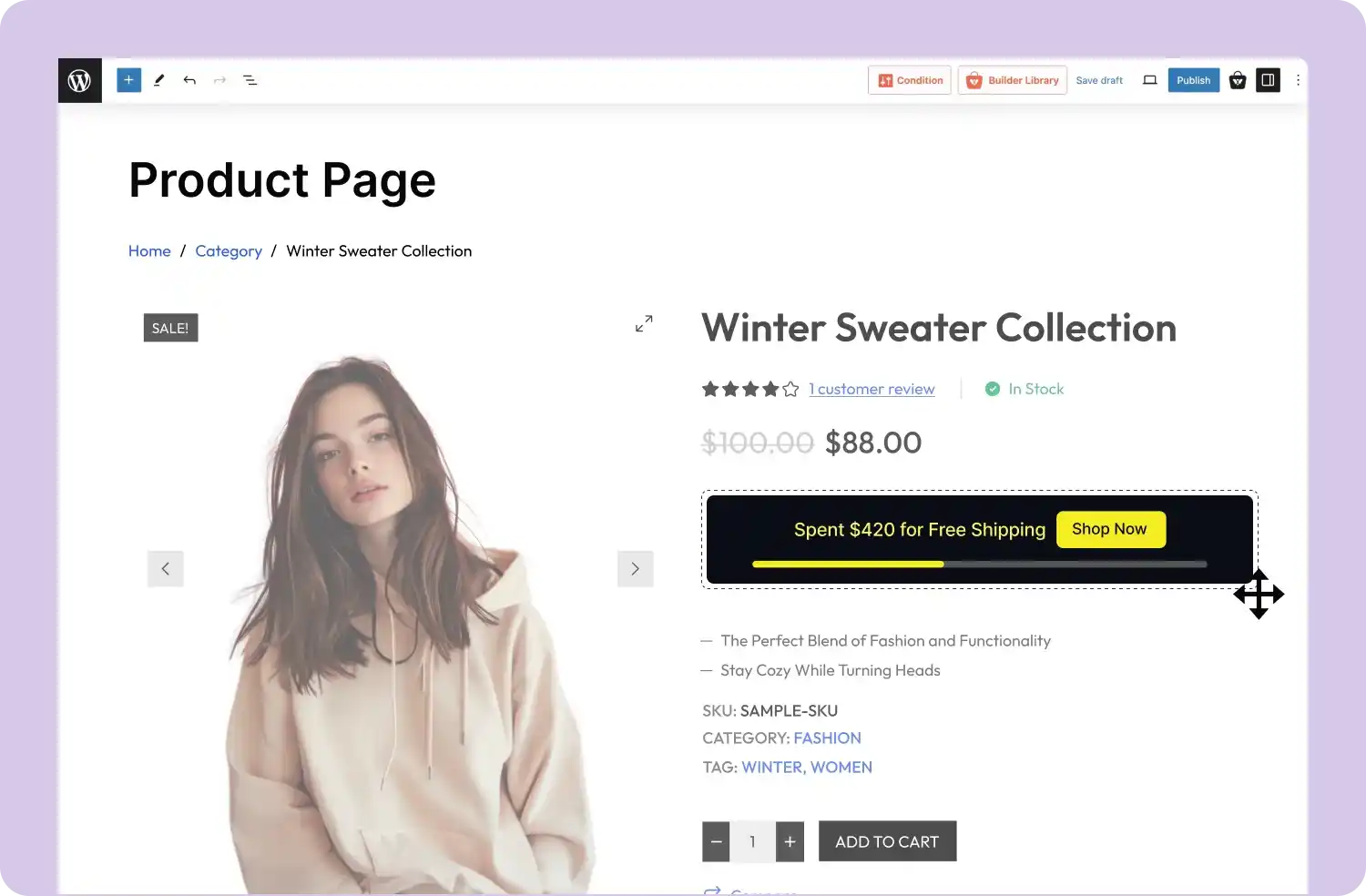
  • Product Page

    Highlight free shipping eligibility directly on individual product pages, motivating customers to add more items to their cart.

    Product Page

  • Cart Page

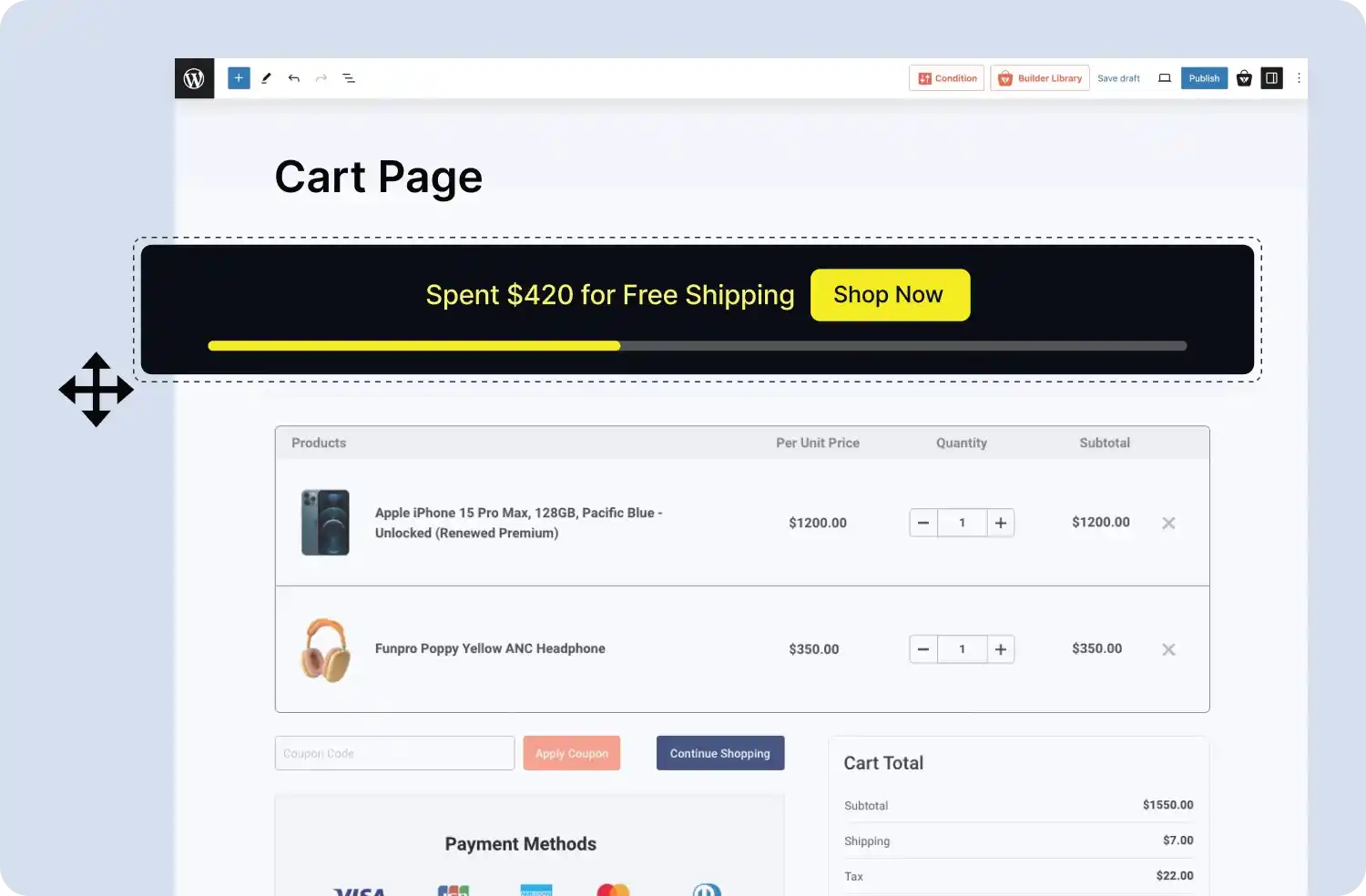
    Remind customers of their free shipping eligibility on the cart page, encouraging them to add more products before checkout.

    Cart Page

  • Checkout Page

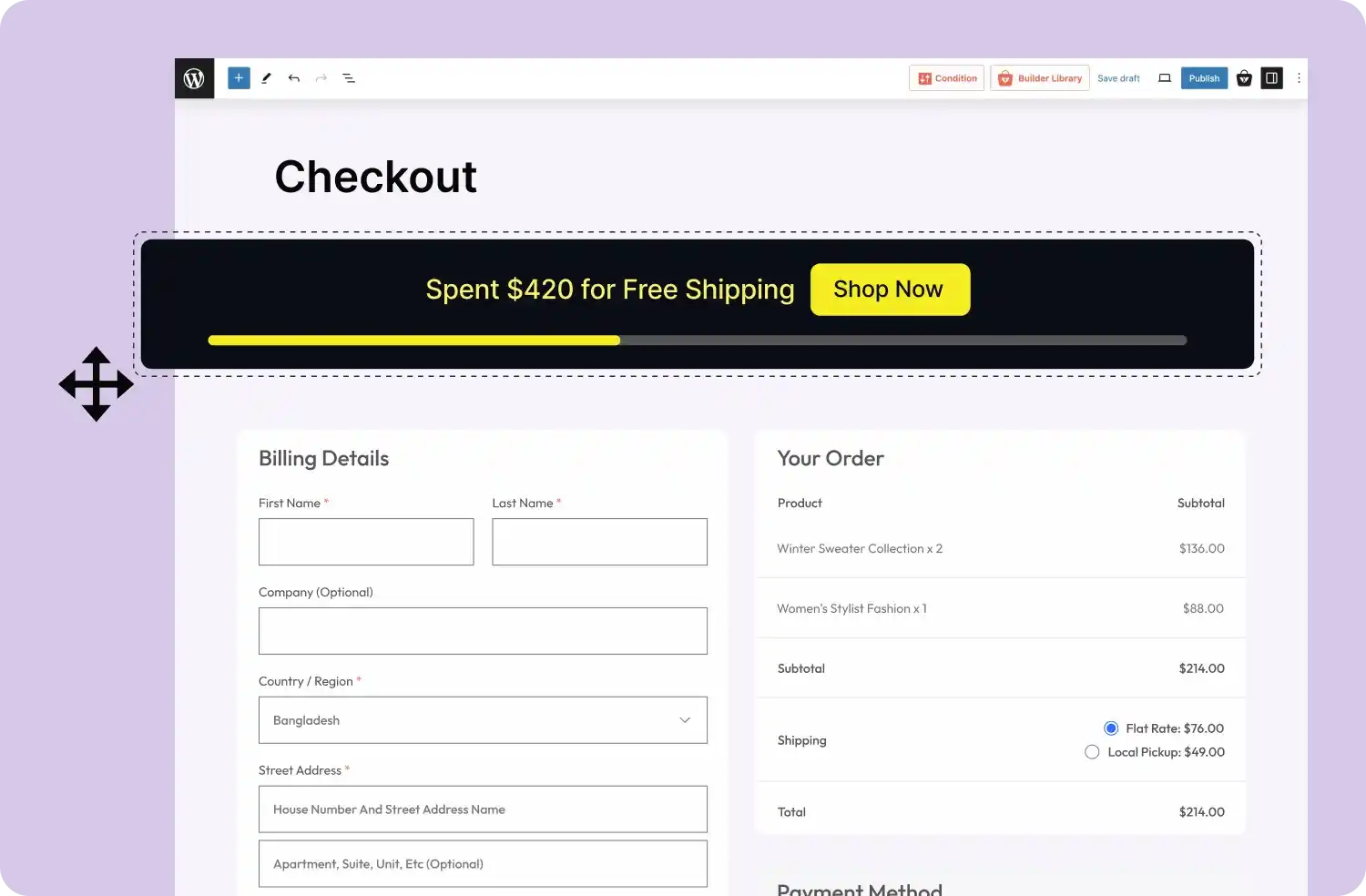
    Provide a final nudge on the checkout page to encourage customers to add more items and qualify for free shipping before completing their purchase.

    Checkout Page

Entire Site
Product Page
Cart Page
Checkout Page

Select the Display Mode That Fits Your Store

Choose the display mode for your free shipping progress bar: in-page, top, bottom, or drawer, to ensure maximum visibility and engagement
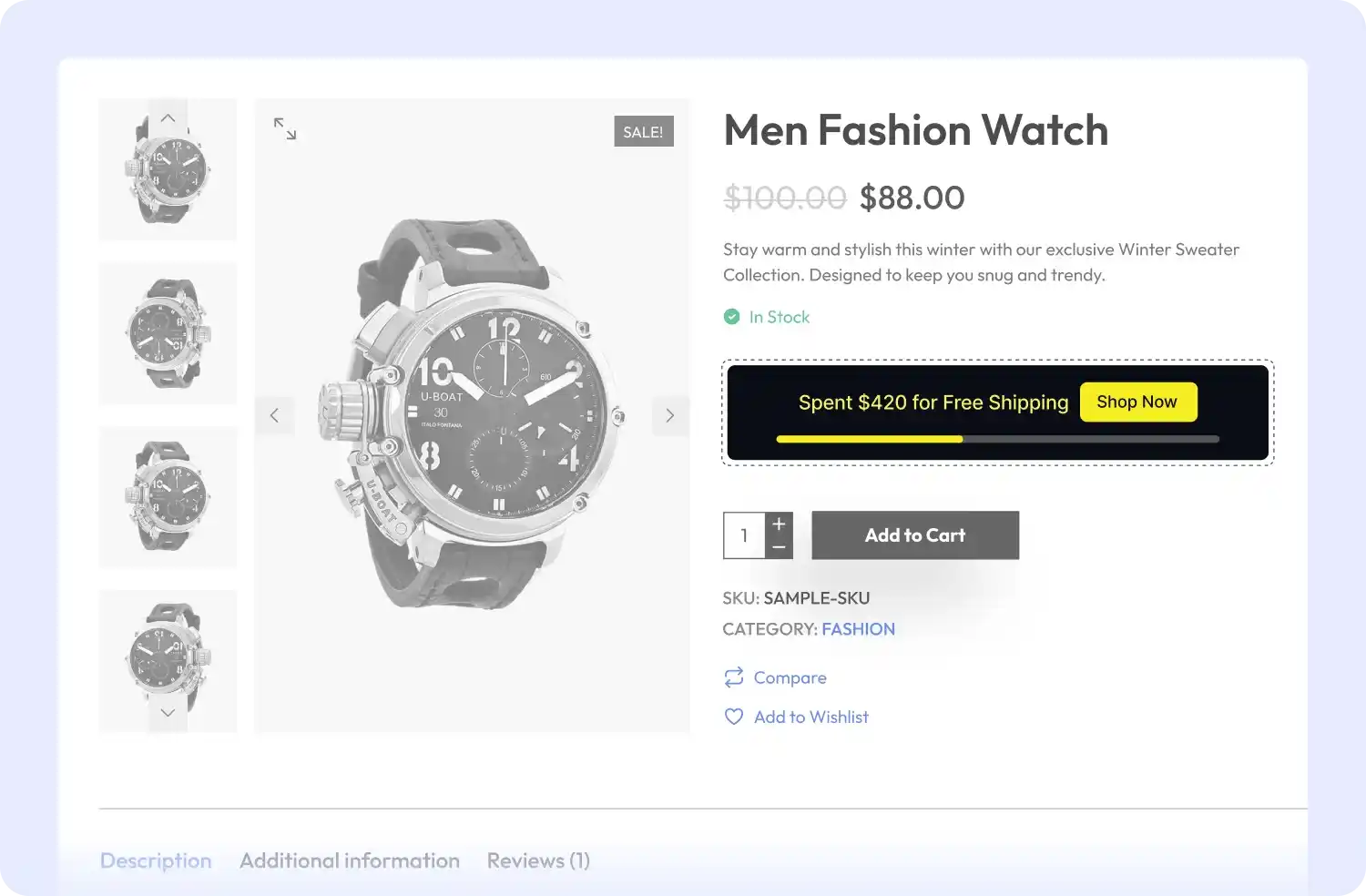
  • In Page

    Integrate the free shipping progress bar seamlessly within the page content for a smooth and natural shopping experience.

    In Page

  • Top

    Position the free shipping progress bar at the top of the page for immediate visibility and to capture customer attention right away.

    Top

  • Bottom

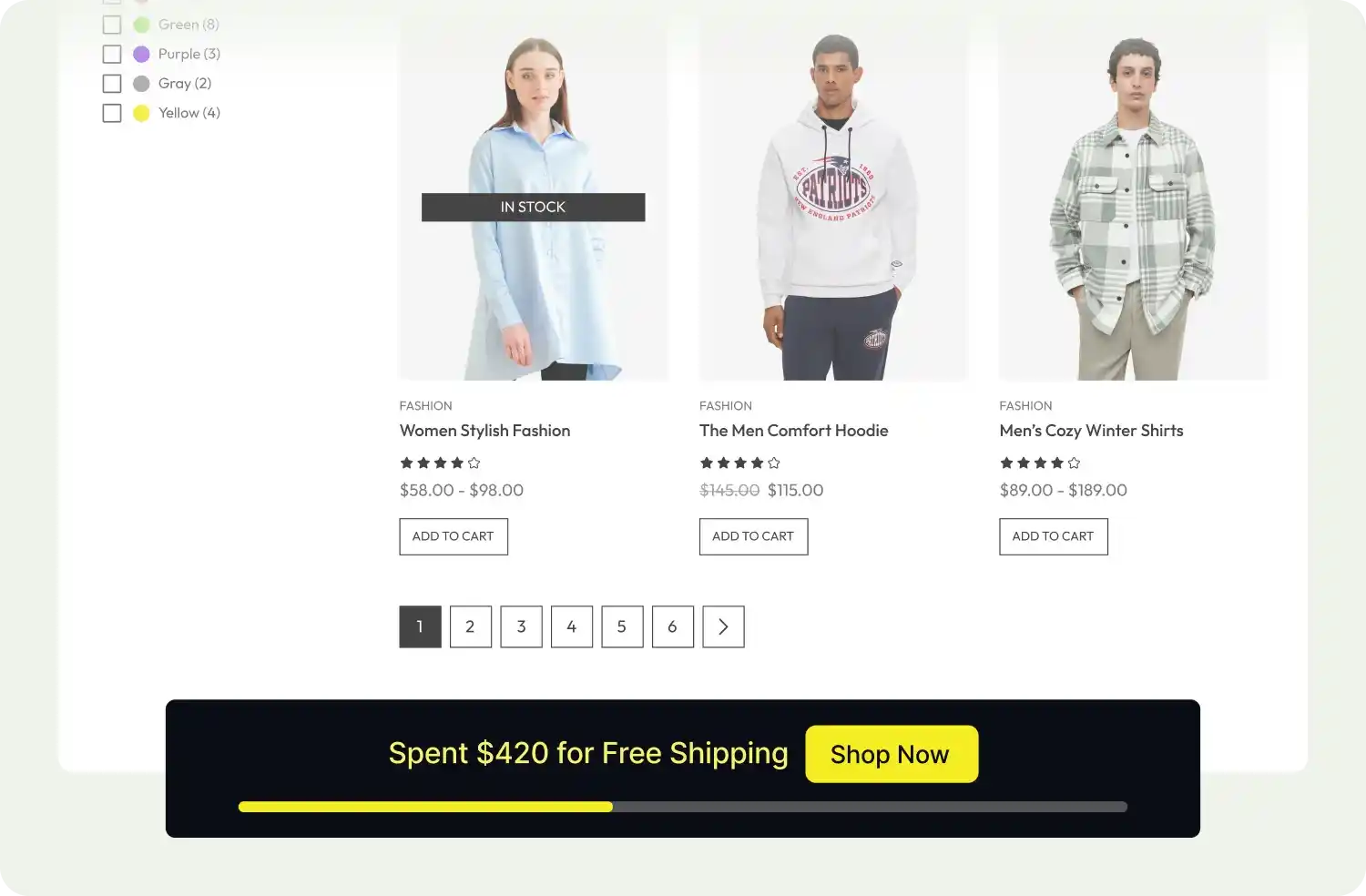
    Place the free shipping progress bar at the bottom of the page to catch attention as customers finish reading and browse through the content.

    Bottom

  • Drawer

    Use a slide-in drawer that appears from the side of the screen across the entire site to keep the free shipping progress bar visible at all times.

    Drawer

In Page
Top
Bottom
Drawer
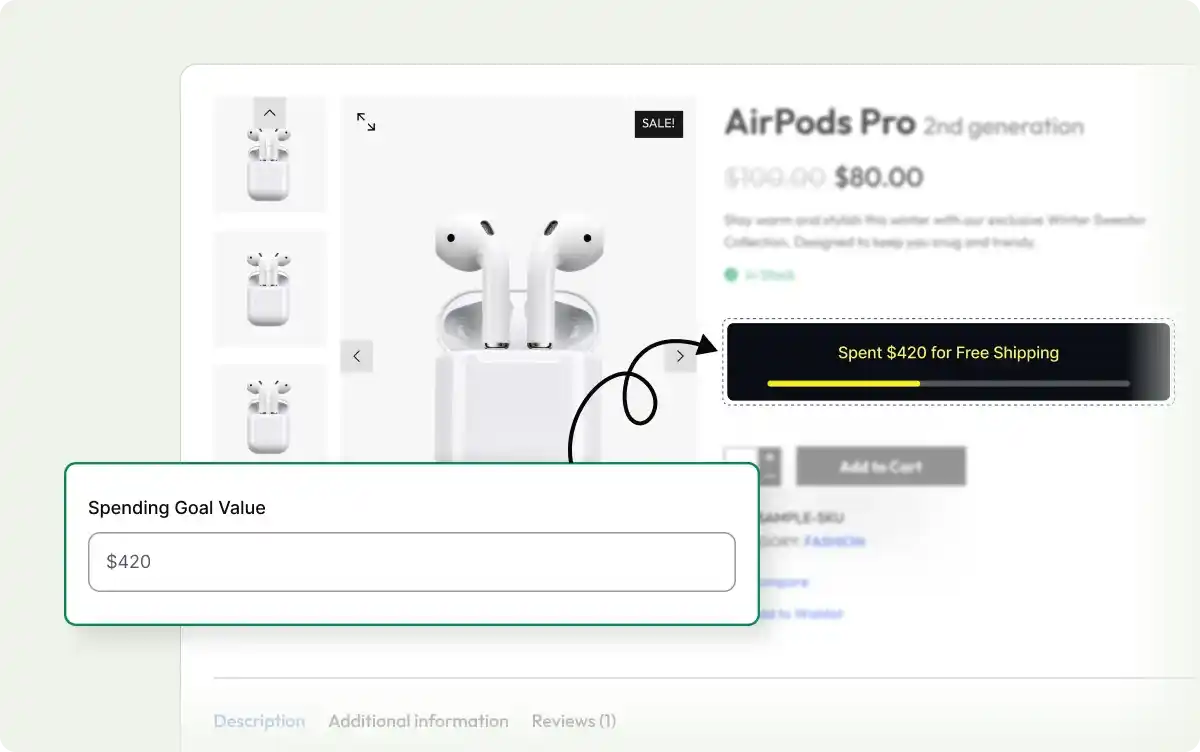
Adding a minimum spending amount to get free shipping.

Set the Minimum Spend for Free Shipping

Define the minimum spend required for free shipping, motivating customers to add more items to their cart and increase their order value.

Add a Call-to-Action Button

Encourage customers to take action with a strategically placed CTA button, driving them to add more items to their cart.
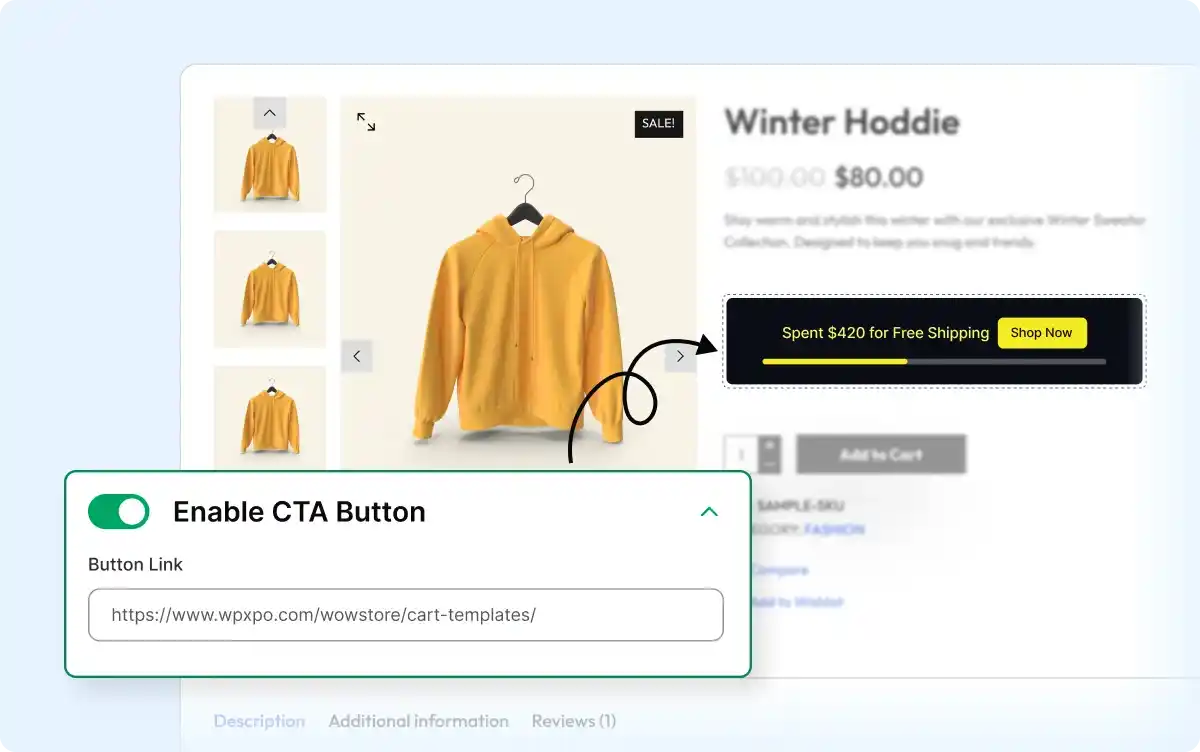
Adding a cta button and URL for the free shipping bar.
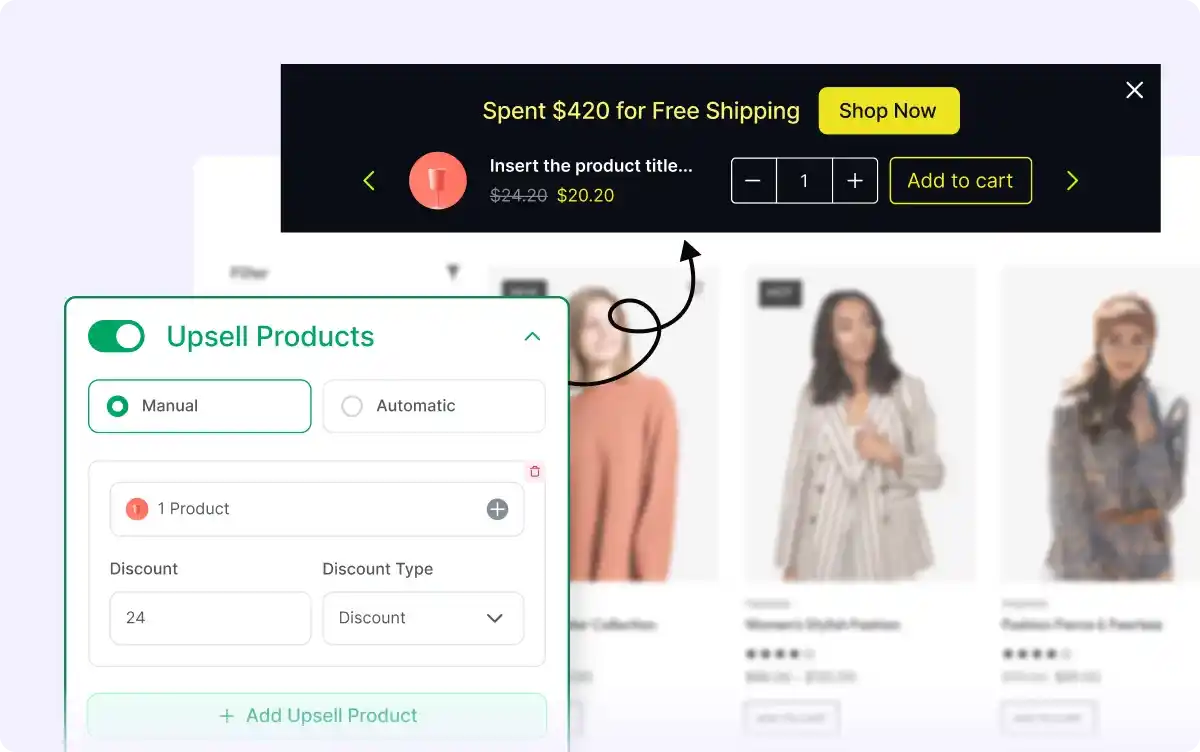
Selecting upselling products to reach the free shipping threshold.

Upsell Products

Display related products with discounts to encourage customers to add more items to their cart, helping them qualify for free shipping and increase sales.

Tailor the Look of the Free Shipping Bar

Adjust the design of your free shipping progress bar to match your store’s branding, ensuring a cohesive and visually appealing shopping experience.
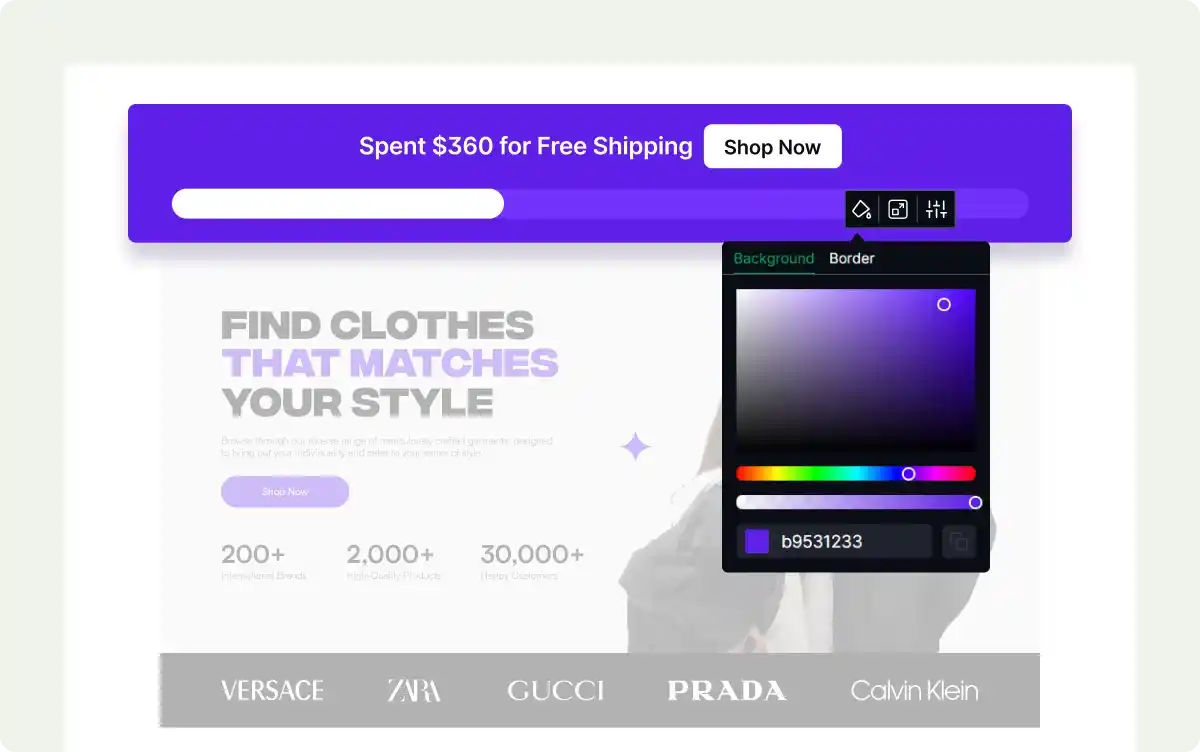
Customizing the free shipping bar with available options.
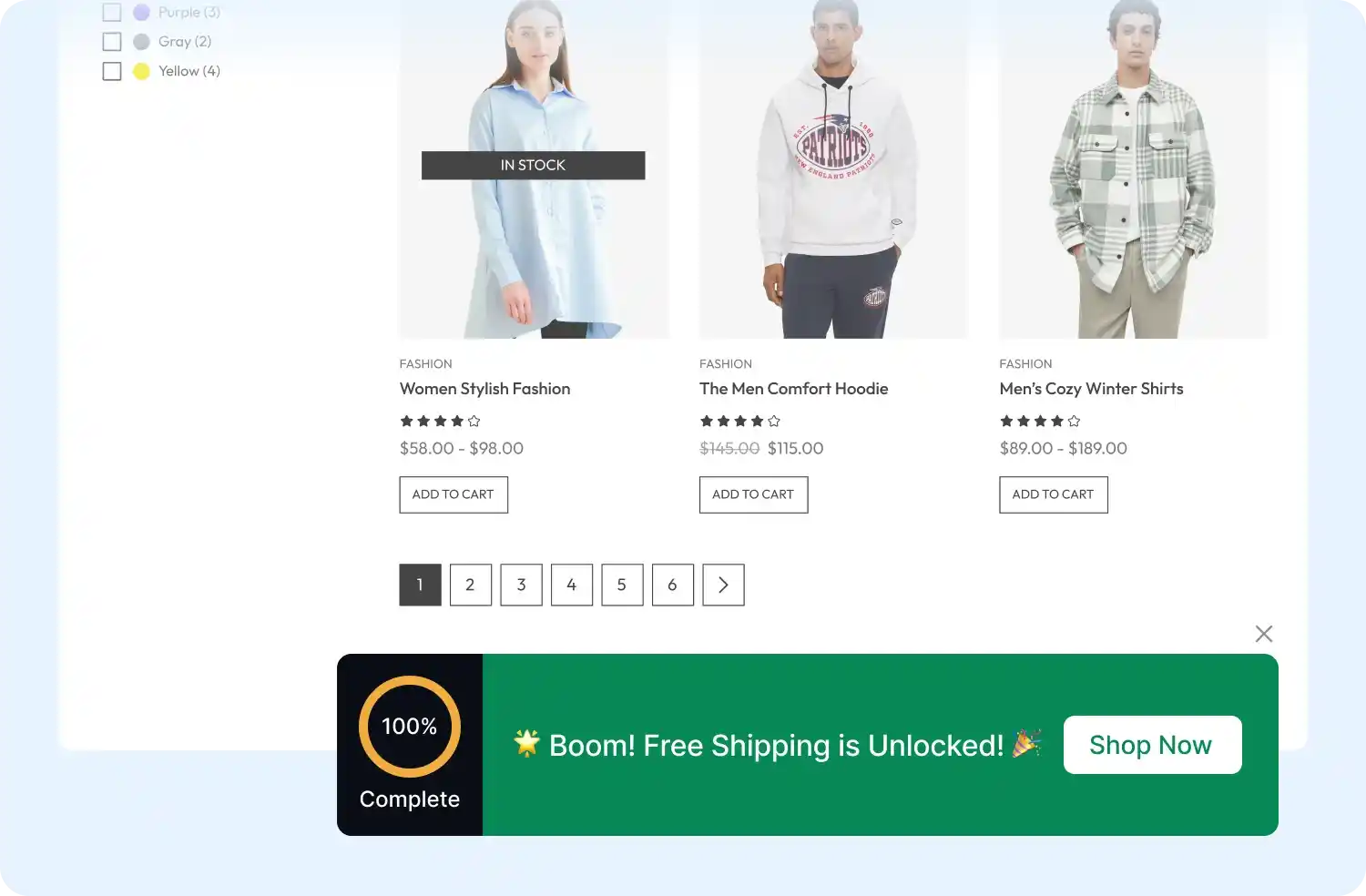
Celebration confetti will be displayed once someone reaches the free shipping threshold.

Celebrate When Customers Reach the Free Shipping Threshold

Add a celebratory touch with confetti animations when customers qualify for free shipping, making their shopping experience more rewarding and fun.

Set Specific Dates for the Free Shipping Bar

Schedule the free shipping bar to appear during specific dates or times, aligning with promotions or sales events to maximize its impact
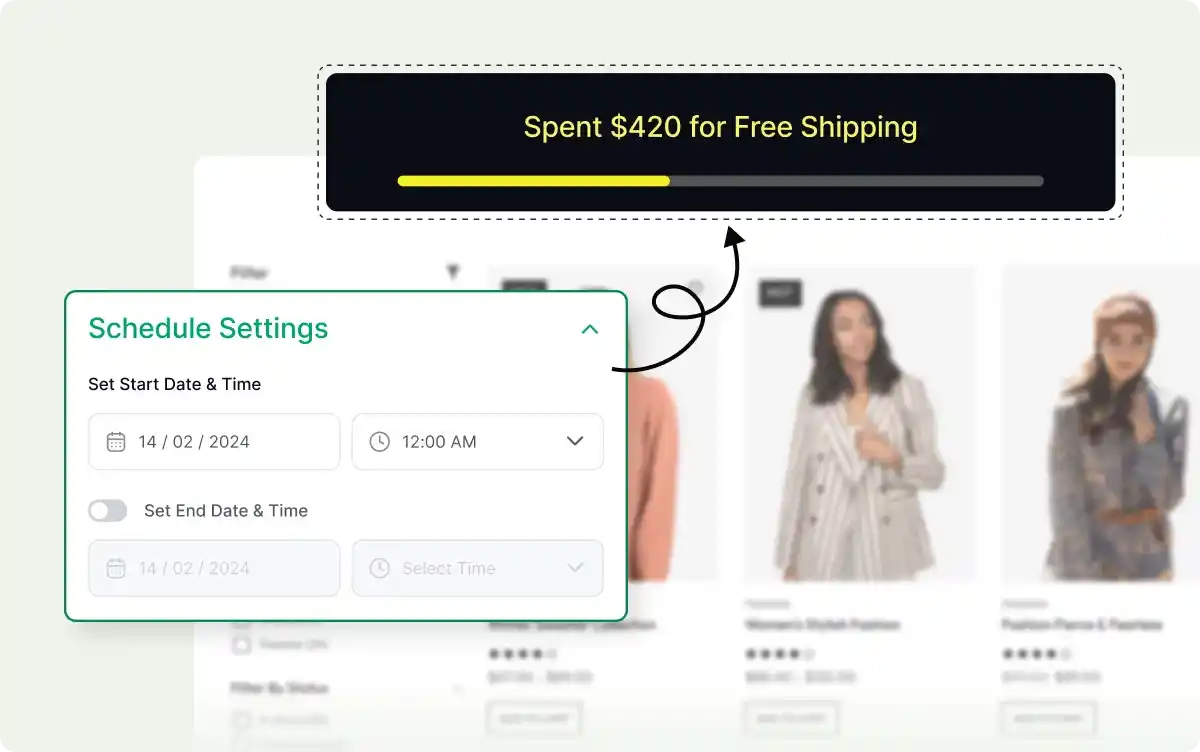
Scheduling the free shipping bar campaign with a start and end date.

Frequently Asked Questions

Explore these frequently asked questions about the Free Shipping Bar campaign that you might be curious about. So, you can make a quick decision about whether you want to buy it.

Feel free to contact our support team in case you have more questions.

Yes, you can do it by choosing the Entire Site option from the page selection. It will display the free shipping bar on every page of your WooCommerce store.

Yes, absolutely. You can show the Free Shipping Bar as a drawer by selecting Drawer as the Display Mode.

Yes, it’s a basic option. Just navigate to the preview section at the right side of the set up page. Click on the bar and strat writtig to change it.

Based on the campaign you select, you can see the sales, conversions, revenue, AOV, and other relevant data from the WowRevenue dashboard.