
Frequently Bought Together for WooCommerce
Create high-converting Frequently Bought Together offers that recommend complementary products, encourage larger purchases, and increase your WooCommerce store’s order value.


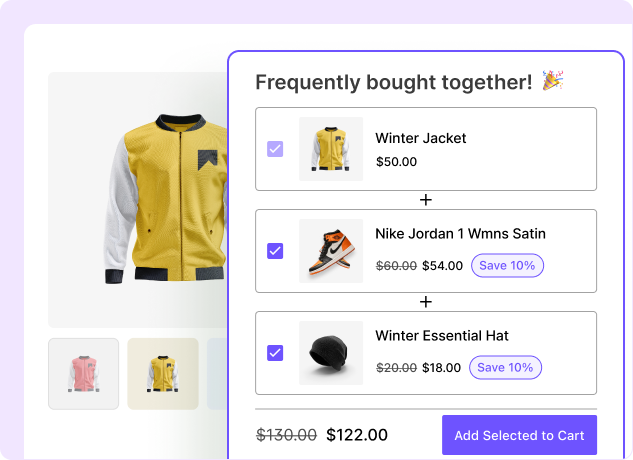
What Is WooCommerce Frequently Bought Together and Why Use It?
WooCommerce Frequently Bought Together is a product recommendation strategy that displays complementary products alongside a main product and encourages customers to purchase them together. For example, a customer viewing a camera might also see a memory card, camera bag, and tripod as a recommended bundle.

Make Product Discovery Easier
Help customers discover relevant complementary products at the right moment, so they can find everything they need without searching through your store.

Create Complete Product Solutions
Combine complementary products into a complete solution, helping customers get everything they need in one convenient bundle at a discounted price.

Turn Cross-Sells Into Offers
Turn relevant product recommendations into compelling offers that make it easier for customers to add complementary products to their cart.

Reduce Shopping Friction
Give customers a more convenient shopping experience by making relevant complementary products easy to discover and add together as a FBT bundle.

Encourage More Products Per Order
Encourage customers to add more products to their cart by recommending relevant items in a conversion-focused design, helping increase the value of every order.
Two Conversion-Focused Designs to Sell Frequently Bought Together
Choose from two conversion-focused layouts designed to showcase complementary products and encourage customers to add more to their cart.
Grid View
Show complementary products in a clean, engaging grid that makes it easy for customers to discover and add multiple products at once.
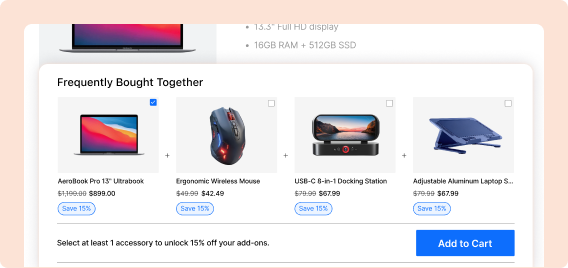
List View
Display complementary products in a compact list, making it easy for customers to review and add multiple items to their cart.
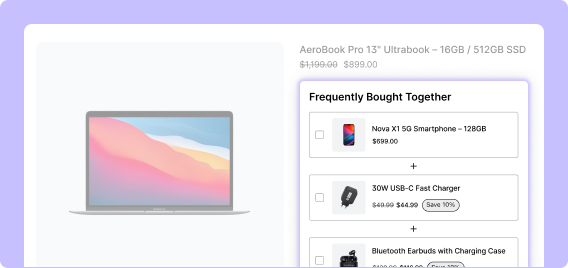
Show FBT Offers on the Products That Matter Most
Encourage customers to buy more by offering better prices on all products, specific products, or selected categories.
All Products
Show Frequently Bought Together offers across all products in your store, making it easy to create consistent cross-selling opportunities.
Categories
Show Frequently Bought Together offers only for selected product categories, making your recommendations more relevant and targeted.
Specific Products
Show Frequently Bought Together offers only on selected products, giving precise control over where each recommendation appears.
Show Bought Together Suggestions Customers Want to Buy
Help customers discover relevant products by creating product combinations
based on different relationships.
Specific Products
Manually choose specific products to recommend together, giving you complete control over which items appear in each Frequently Bought Together offer.
Related Products
Automatically recommend products related to the item customers are viewing, making it easier to discover relevant additions to their purchase.
Upsell Products
Recommend higher-value or upgraded products that complement the customer’s current selection and encourage them to make a bigger purchase.
Bought Together
Recommend products that customers frequently purchase together, helping shoppers discover popular combinations and add complementary items to their cart.
Others Also Bought
Show products that other customers purchased alongside the current product, helping shoppers discover popular combinations and complementary items.
Flexible Discount Types for Frequently Bought Together
Make your Frequently Bought Together offers more compelling with flexible discount options that encourage customers to add complementary products to their cart.

Percentage Discount
Offer a percentage discount when customers purchase the recommended products together.

Fixed Discount
Give customers a specific amount off when they add the recommended products to their purchase.

Fixed Price
Set one combined price for the main product and recommended products.

Discounts to the Main Product
Apply the discount to the main product along with recommended products.

No Discount
Recommend complementary products together without offering a discount.
Display Frequently Bought Together Across Your Store
Show relevant Frequently Bought Together offers across your store with flexible placement and targeting options that help turn product recommendations into more sales.
Product Page
Display relevant Frequently Bought Together offers while customers are exploring a product and deciding what to buy.
Cart Page
Recommend complementary products before checkout to encourage customers to add more to their cart.
Checkout Page
Give customers a final opportunity to discover relevant add-ons before completing their purchase.
Thank You Page
Continue the shopping journey by showcasing complementary products after the order is placed.
Customize Your Frequently Bought Together Offer
Customize every part to make the offer clear, engaging, and consistent with your store.
Custom Heading
Create an attention-grabbing offer title that clearly communicates the value.
Subheading
Add supporting text that explains the benefits of buying the recommended products.
Button Text
Customize your call-to-action button with clear, compelling text.
Badge Text
Highlight savings, special deals, or other important offer details with eye-catching text.
Required Main Product
Make the main product mandatory so customers must purchase it.
Disable Coupon
Prevent coupon codes from being applied to the Frequently Bought Together offer.
Discount Display
Clearly show available offer or savings so customers can quickly understand.
Free Shipping
Offer free shipping to make the offer more attractive and increase conversions.
WooCommerce Frequently Bought Together Examples
See how you can combine complementary products into relevant Frequently Bought Together offers that encourage customers to add more to their carts.

Camera Store
Recommend essentials like memory cards, camera bags, batteries, and tripods alongside cameras to help customers get everything they need for their next shoot.

Electronics Store
Showcase accessories such as chargers, cables, cases, and adapters to help customers complete their setup and get more from their devices.

Fashion Store
Add items like shoes, bags, belts, and accessories to help customers complete their look with products that pair naturally together.

Coffee Store
Recommend products like coffee beans, mugs, filters, and brewing accessories to help customers create a complete coffee setup.
Why Use WowRevenue for Creating Frequently Bought Together?
See why WowRevenue is an obvious choice choosing a bundle plugin with FBT offer.
Conversion-Focused Designs
Present recommendations in engaging layouts.
Grid & List Views
Display your recommendations side by side one after another in a list layout.
Flexible Product Selection
Recommend specific, related, upsell, or bought-together products.
Multiple Discount Types
Select from percentage, fixed discount, fixed price, or no discount.
Free Gift Support
Offer a free gift when customers select a specific number of products.
Multiple Display Locations
Show offers on product, cart, checkout, and thank you pages.
Variation Support
Allow customers to select exact variations of the products within the bundle.
Flexible Targeting
Apply offers to specific products, categories, or all products of your store.
How to Create a Frequently Bought Together Offer in WooCommerce
Create bulk discounts in three simple steps and optimize every offer for higher conversions.
Select Your Main Product
Choose the product for which you want to display the recommendation.
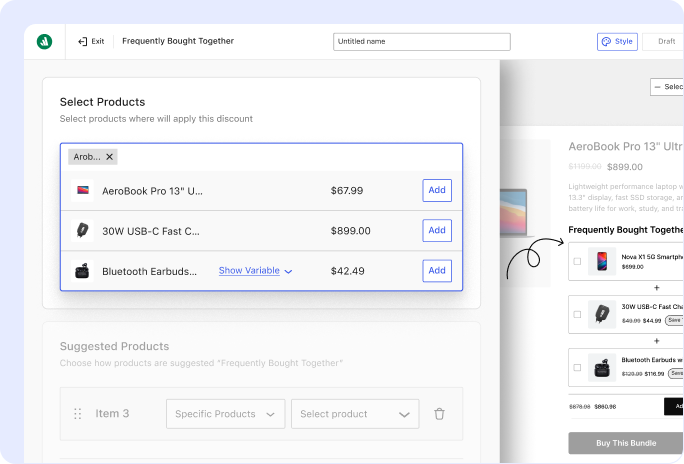
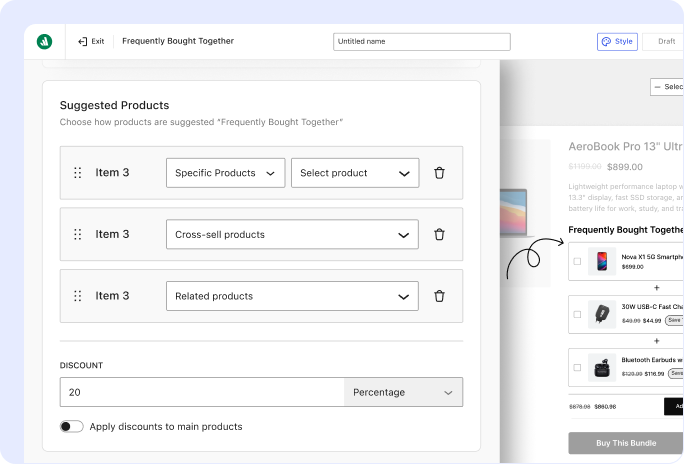
Add Frequently Bought Together Products
Select specific, related, upsell, or other recommended products
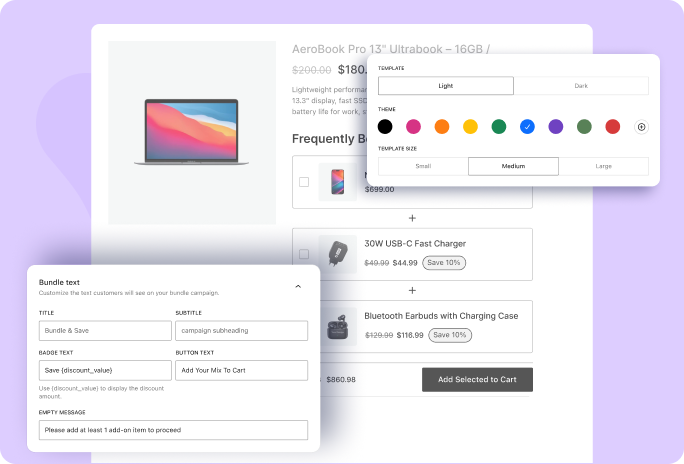
Configure Your Offer
Choose the layout, discount, free gift, text, and display locations.
Which Frequently Bought Together Plugin Should You Choose?
Compare the features that matter most and see how WowRevenue gives you more ways to create flexible, engaging, and conversion-focused bulk discount offers.
Plugin | Notable Features | Best For |
|---|---|---|
WowRevenue | 5 Bundle Types including, bundle products, mix and match bundle, frequently bought together, and more with conversion focused designs to sell those bundles. | Stores looking for an all-in-one bundle and Frequently Bought Together solution with appealing bundle layouts designed to increase conversions. |
WowRecommendations | AI-Powered Recommendations, 32+ Filters, Smart Sorting, Frequently Bought Together, Upsells, Cross-sells, Popup Upsells, Checkout Order Bumps, Revenue Analytics | Stores looking for AI-powered product recommendations and AOV optimization |
Product Recommendations for WooCommerce | Automated Product Recommendations, Frequently Bought Together, Upsells, Cross-Sells, Recommendation Rules, Analytics, Multiple Display Locations | Stores looking for rule-based product recommendations and upsells |
WPC Frequently Bought Together for WooCommerce | Co-Purchase, Co-View, FBT, Product Relationships, Recommendation Rules | Stores wanting behavior-based product recommendations |
Frequently Asked Questions
Explore these frequently asked questions about Frequently Bought Together to find the answers you need and make a confident purchase decision.
Feel free to contact our support team in case you have questions.