
A bundle discount is a promotional strategy where several products are combined and sold at a lower price as a package.
For example, a fast-food restaurant might offer a combo meal that includes a burger, fries, and a drink at a reduced price.
If you need further assistance after reading this, please don’t hesitate to contact us. We’re always happy to help!
Create Campaign
To create a Bundle Discount campaign, follow these steps,
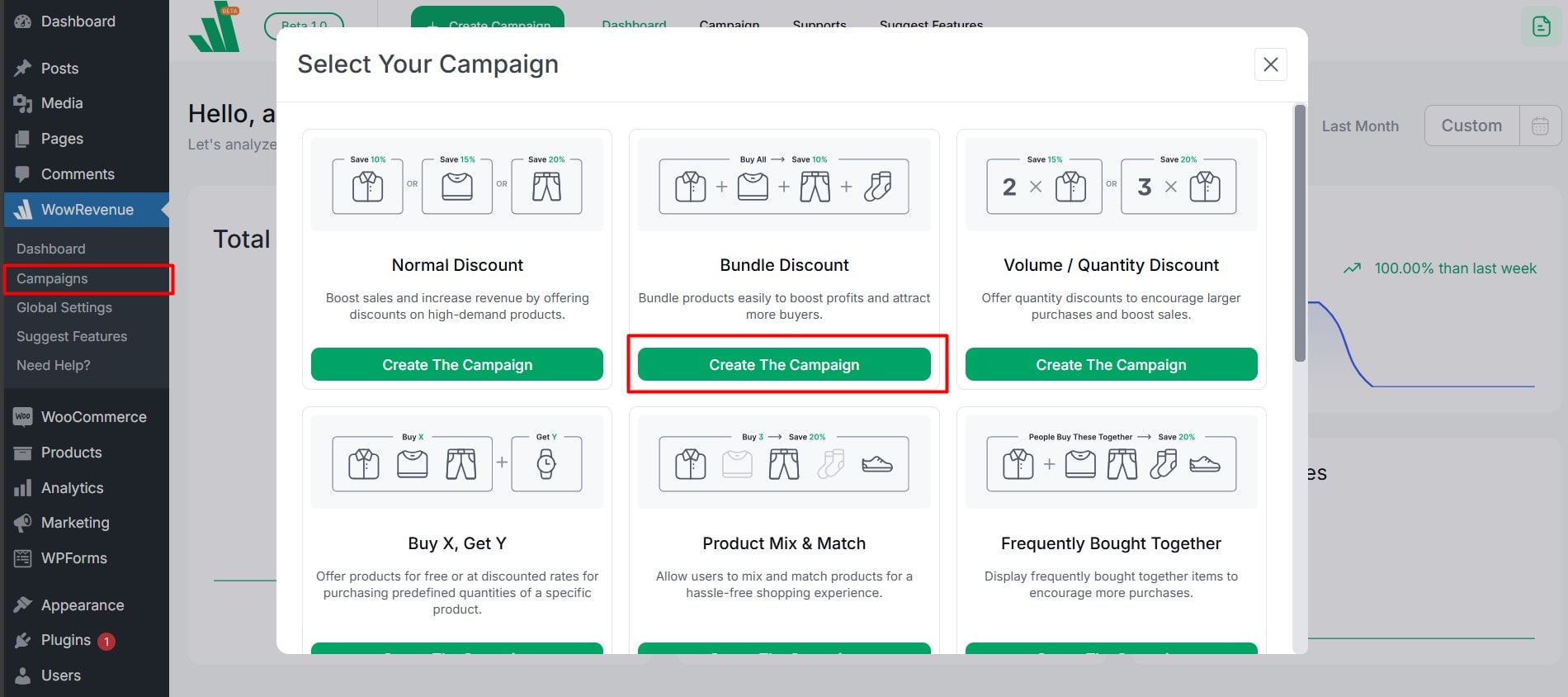
- From your WordPress Dashboard, go to WowRevenue -> Campaigns -> click on the Create Campaign button.
- From the pop-up page, choose Bundle Discount -> click on the Create The Campaign button.
Set Up Initial Options
Campaign Name: Create a unique campaign name for easy identification. This helps manage multiple bundle discount campaigns.
Short Code: Use shortcodes to place your bundle discount campaign in a specific position or with third-party solutions.
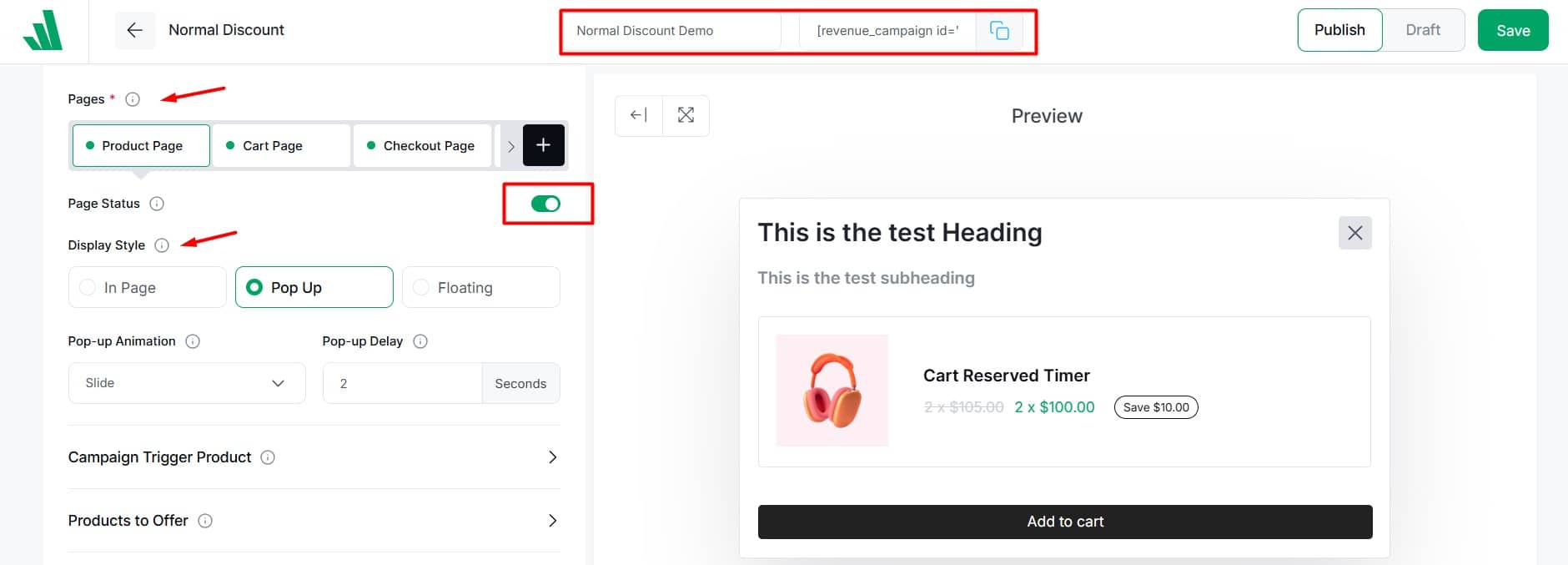
Pages: Select where you want to show the bundle discount campaign. There are four options:
- Product Page: When customers view the product, it triggers and shows offers for other items.
- Cart Page: When customers add the product to the cart, it triggers and displays discounts in the cart.
- Checkout Page: When customers reach the checkout page with the product, it activates and displays offers on other items.
- Thank You Page: Buying a product triggers and displays a discount on the Thank You page.
Page Status: You can enable or disable pages to decide whether the bundle campaign appears on that page.
Display Style: Choose how to display your bundle offer with these three options:
In-Page: The bundle discount offer will be displayed directly on the desired page.
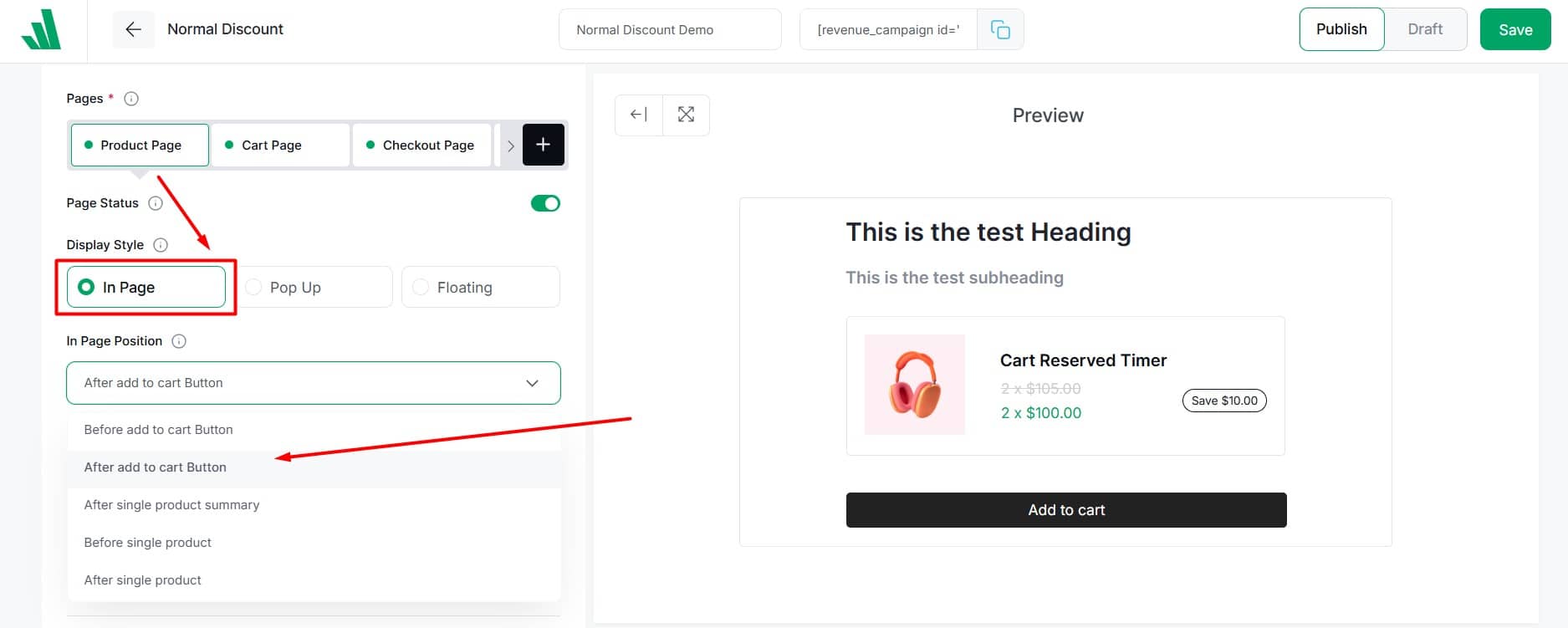
Select an in-page position from the dropdown menu (8 options available).
Note: The in-page position option is not available for campaigns on checkout or thank you pages.
Pop-Up: The offer will appear as a pop-up on the desired page.
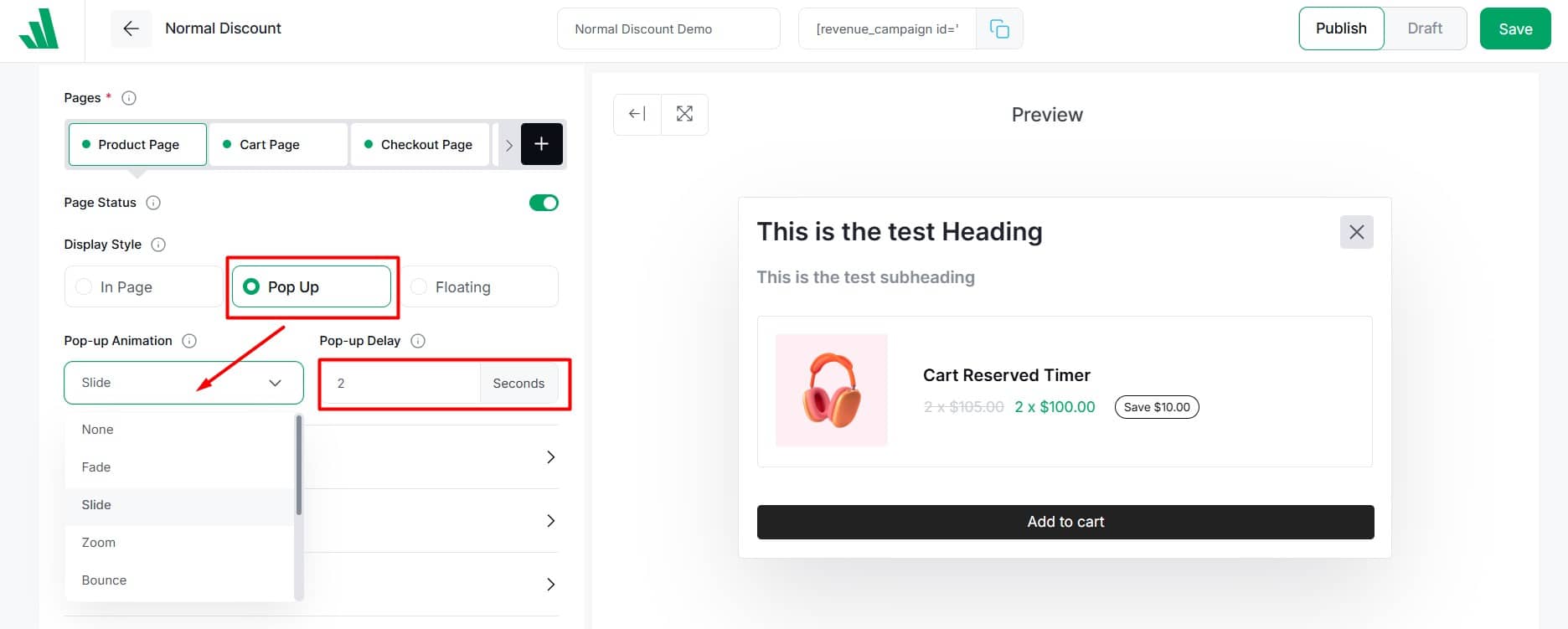
- Choose a pop-up animation from eight options.
- Enable the immediate trigger to appear as soon as the page loads. Or set a delay in seconds for it to appear later.
Floating: The offer will stay floated on the desired page.
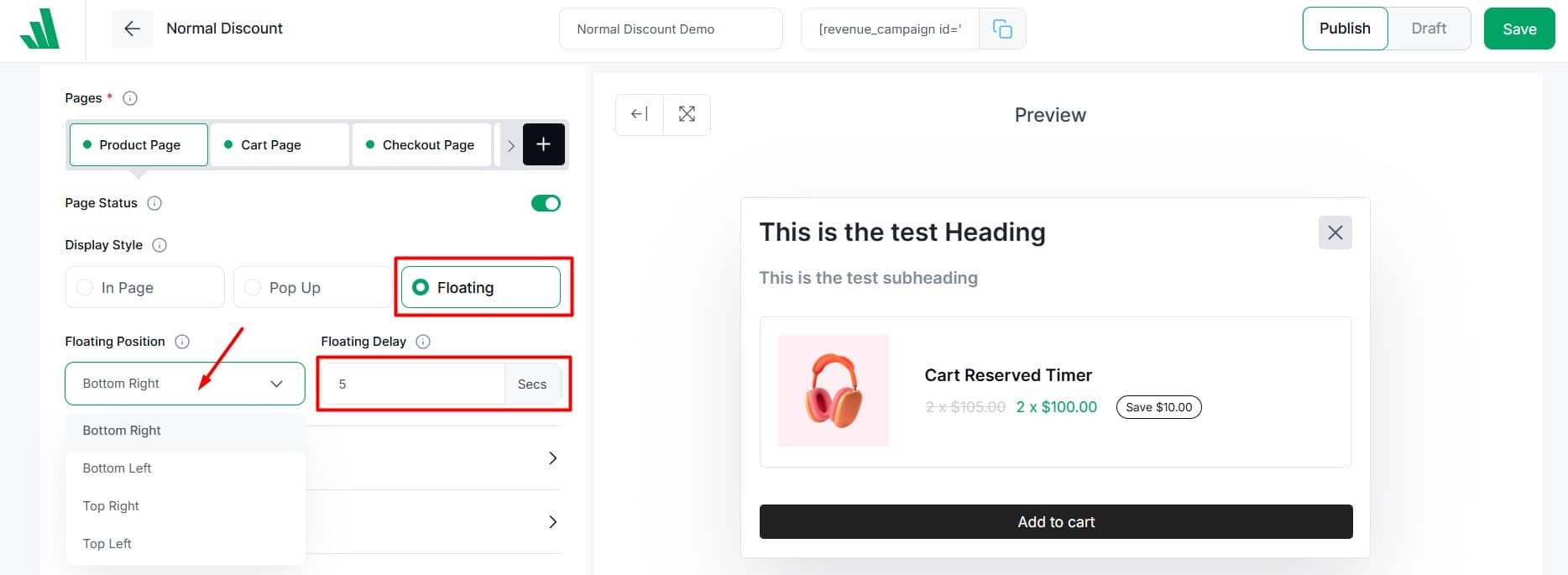
- Pick a floating position from four options.
- Enable the immediate trigger to appear as soon as the page loads. Or set a delay in seconds.
Campaign Trigger Product
In this section, select the products for which you want to make the bundle offer. These will act as trigger products for your Bundle Discount Campaign.
Click on the Select an option field and choose your trigger product(s). You have three options:
- All products: It’s uncommon to use all products as a trigger for a bundle discount. But this option is available. You can also exclude certain products.
- Specific product: Search and select the products for which you want to make a bundle offer.
- Specific category: Choose specific categories to apply the bundle discount to all products within those categories. You can also exclude certain products from the categories you selected,
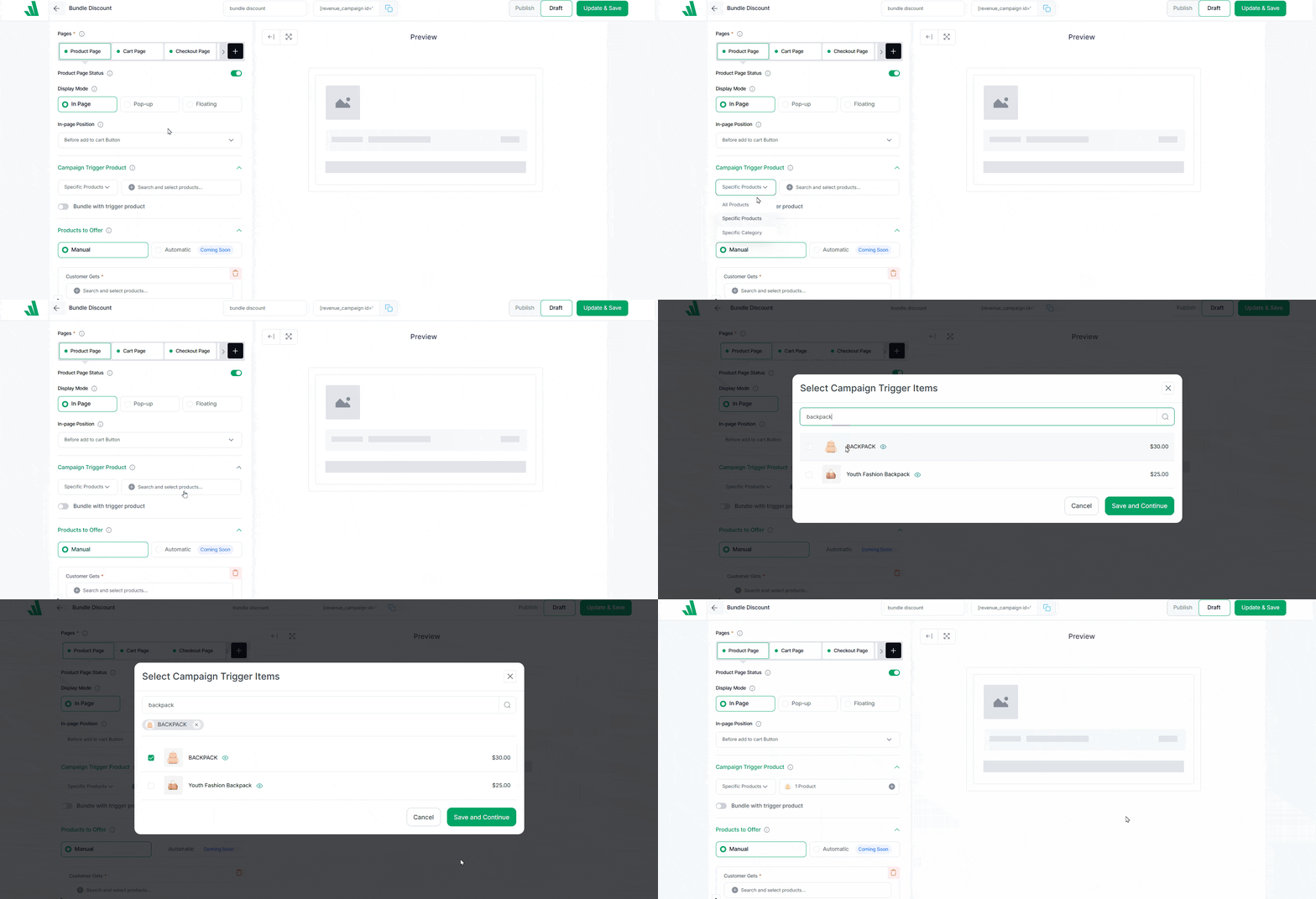
Bundle with Trigger Product: Turn it on to include the trigger product in the bundle discount.
Products to Offer
From this section, you can choose bundle products and set discounts. Select as many products as needed for the bundle. To add bundle products and set up discounts, follow these steps:
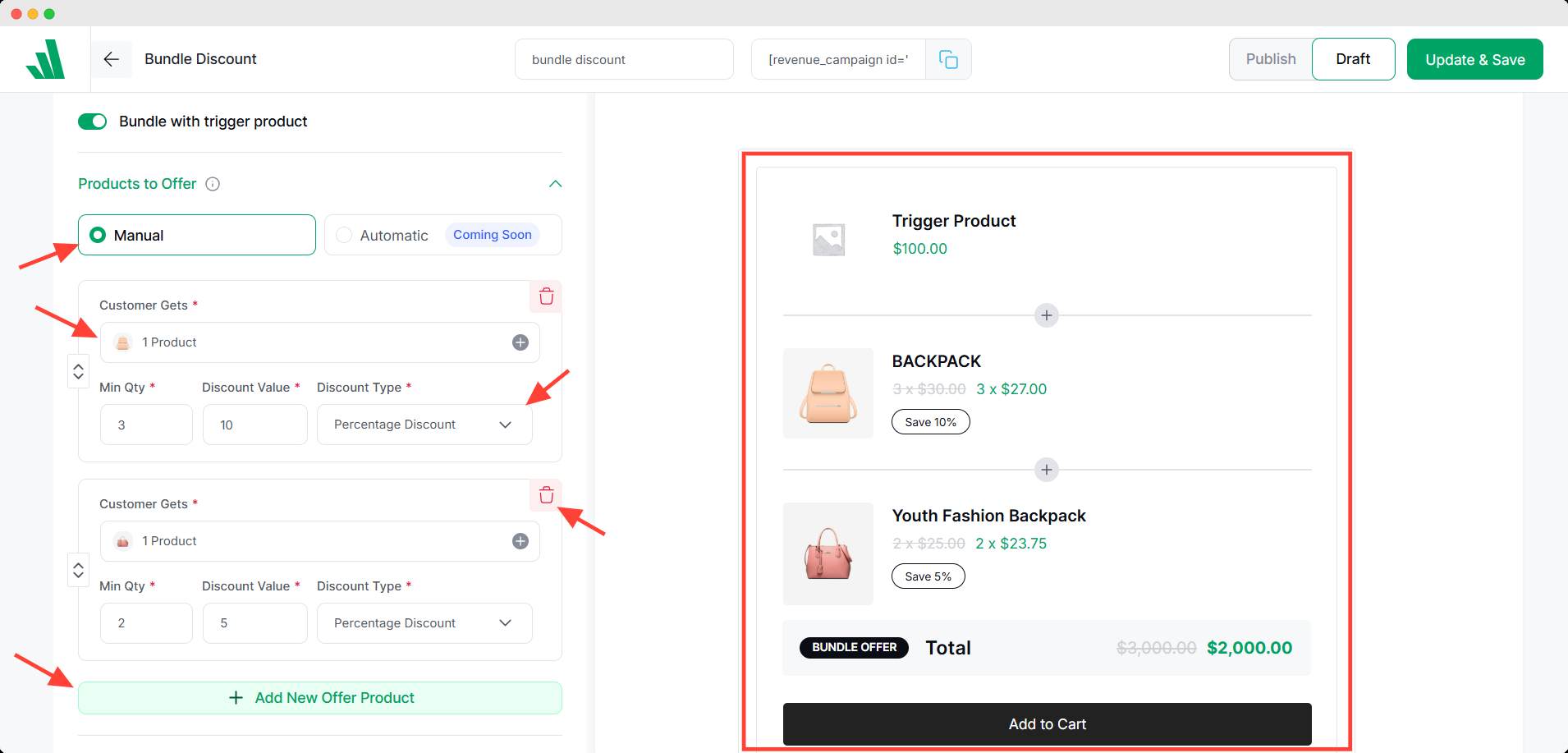
- Choose between Manual or Auto mode. (Auto is coming soon, so select manual)
- Click on Offer Products, then search and select the desired product.
- Set the minimum quantity of the product needed to get the bundle offer.
- Enter the discount amount as a number.
- Select the type of discount from the dropdown menu. There are two discount types.
- Percentage Discount: Offer the product at a reduced price by a certain percentage of the original price.
- Fixed Discount: Cut a specific amount from the product’s original price.
- Click the + Add New Offer Product button to include more products with different conditions or discounts. This is optional.
- Use the trash bin icon to delete the entry if needed.
- You can drag and drop to reorder easily.
To set up Front-end Campaign Title, Campaign Time Schedule Settings, and Additional Settings, click here.
To learn about Countdown Timer, Animated Add to Cart, and Free Shipping features, click here.
To learn how to display the campaign in Grid or List view, click here.
For Typography, Color, and Spacing, click here.