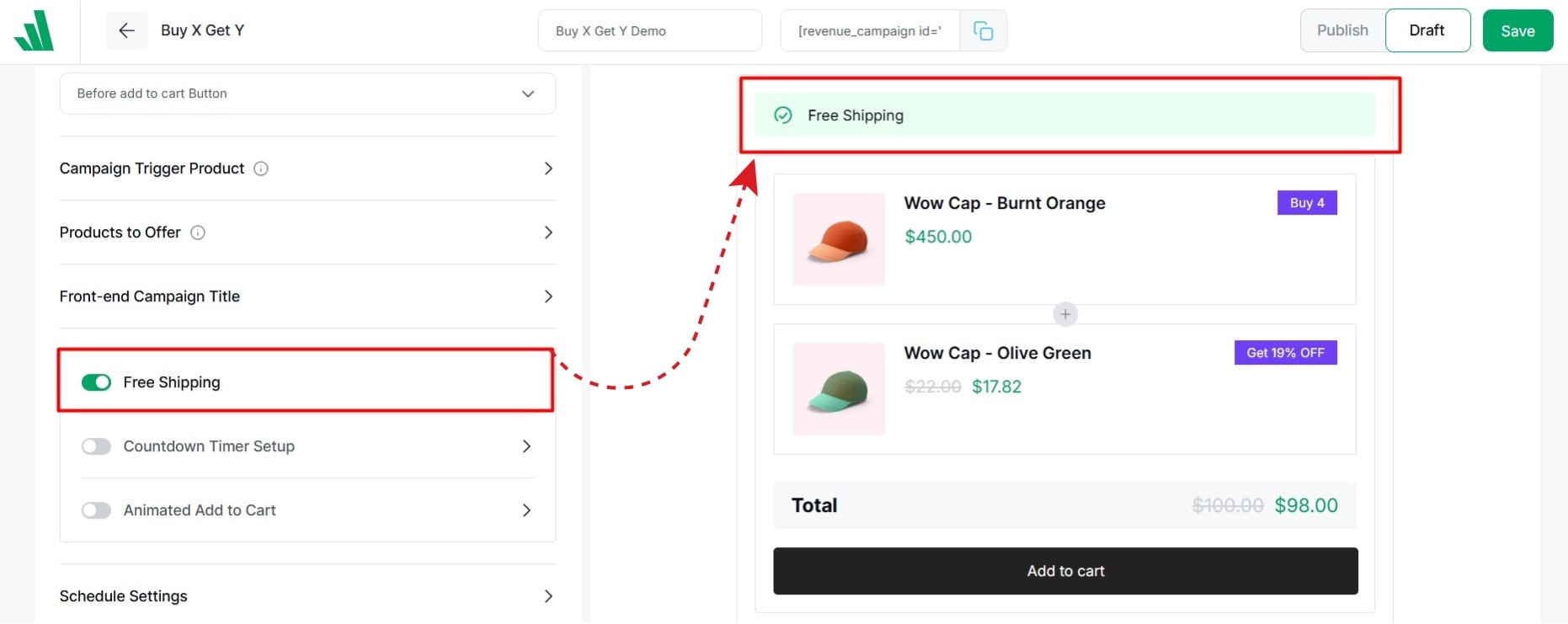
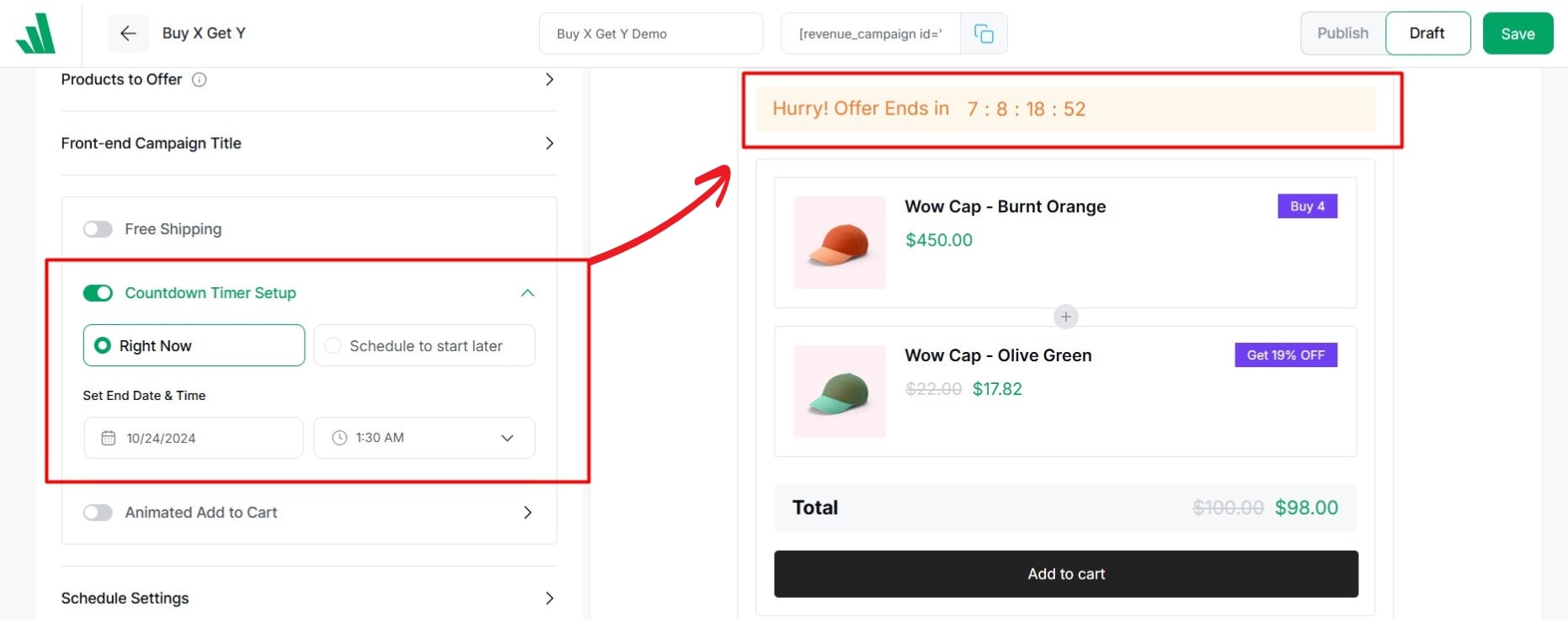
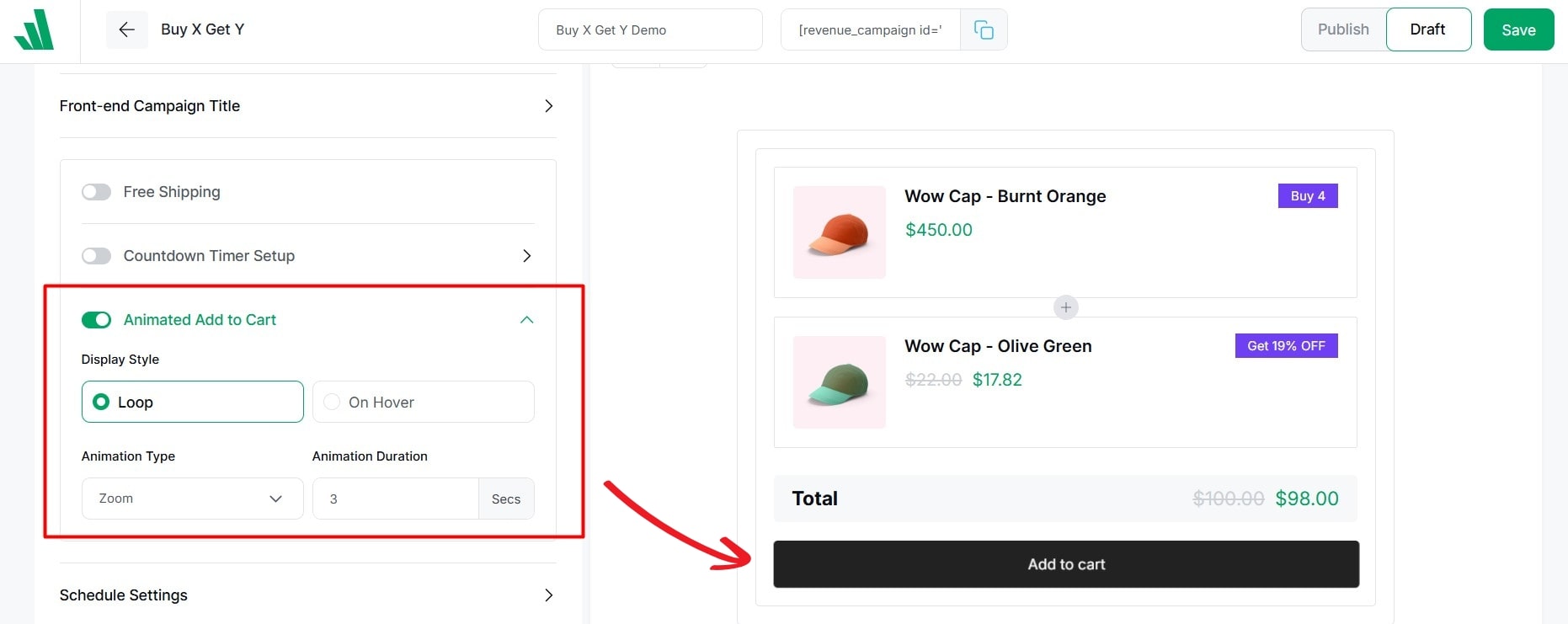
Free Shipping
The Free Shipping growth tool helps you encourage customers to spend more by showing how much more they need to add to their cart to unlock free shipping.
You can set the spending target, customize the progress message, display a progress bar, add visual effects, promote upsell products, and control where the campaign appears.
Set the Free Shipping Goal
Start from the Set Your Free Shipping Goal section.
Enter the Required Spend customers need to reach before free shipping becomes available.

Next, use the Based On option to choose how the required spending amount is calculated. For example, you can calculate it based on the Subtotal or Cart Total.
Once the customer’s cart reaches the required amount, the free shipping goal is completed.
Customize the Free Shipping Settings
The Free Shipping Settings section lets you customize how customers see and interact with the goal.

You can configure:
- Progress Message to tell customers how much more they need to spend.
- Progress Bar to visually show how close customers are to unlocking free shipping.
- Confetti to display a celebration effect when the goal is completed.
- CTA Button to add an optional call-to-action to the campaign.
- Add Upsell Product: Recommend an additional product that may help customers reach the free shipping threshold.
Choose Where to Display the Growth Tool
The Placement section controls where customers can see the campaign.

You can enable the growth tool on:
- Product Page
- Cart Page
- Checkout Page
- Entire Site
Each placement can be enabled or disabled separately, giving you control over where the message appears throughout the shopping journey.
Configure Advanced Settings
The Advanced Settings section includes additional controls for campaign behavior.
For example, you can enable Disable Coupon When Offer on Cart when you do not want customers to combine coupon discounts with the active offer.
Spending Goal
The Spending Goal growth tool lets you create one or more spending milestones that customers can complete to unlock rewards.
Choose How Spending Is Calculated
Use the Based On setting to define how customer spending is calculated.
Create Spending Goal Steps
Each reward is configured as a separate Step.

Click Add New Step to create additional milestones. This lets you build a progressive campaign where customers unlock more rewards as they spend more.
For example:
- Step 1 can unlock Free Shipping.
- Step 2 can unlock a Discount.
You can rearrange or remove individual steps as needed.
Configure Each Goal Step
Open a step to configure its spending requirement and reward.
Set the Required Spend to define how much customers need to spend before completing that step.

Then configure the reward settings, including:
- Type to choose the reward customers unlock.
- Reward Label to name the reward shown to customers.
- Discount to set the discount amount when the selected reward type is a discount.
When using a discount reward, you can configure the discount value and available discount method.
Customize the Progress Message
Each spending goal step can have its own progress messaging.
The Starting Message tells customers how much more they need to spend before unlocking the reward.
You can use dynamic values such as:
- {remaining_amount} to display how much more the customer needs to spend.
- {reward_type} to display the reward they are working toward.
- {discount_value} to display the discount value when applicable.
You can also customize the Success Message shown after customers complete the goal.
These dynamic messages automatically update based on the customer’s progress.
Use the Ultimate Goal Completion Note to display a final message after customers complete all configured spending goals.
Customize the Goal Display
You can further customize the Spending Goal campaign with options such as:
- Display Goal Icon to visually identify each reward on the progress bar.
- Display Confetti to celebrate completed goals.
- CTA Button to add an optional call-to-action.
The live preview on the right side lets you see how the progress bar, messages, and reward milestones will appear to customers.
Note: The Placement and Advanced Settings options work the same way as described in the Free Shipping section above.
Stock Scarcity
The Stock Scarcity feature in WowRevenue helps you create urgency by displaying stock availability messages on your WooCommerce store.
Apply To
Choose which products will display the stock scarcity campaign. You can select Specific Products and click Add Products to include your preferred items.
Stock Scarcity Display
Customize how stock availability messages appear to your customers.

- General Message: Display a standard stock availability message.
- Flip Message: Show animated scarcity messages to capture customers’ attention.
- Enable Stock Bar: Show a visual progress bar alongside the stock message.
- Enable Fake Stock: Display a custom stock quantity instead of the actual inventory count.
- Repeat Interval: Configure repeated scarcity message behavior.
In Stock Message
Customize the message displayed to customers. You can use dynamic tags such as {stock_number}, {sales_number}, {view_number}, and {shopper_number} to include relevant information.
Low Stock Alert
Enable Low Stock Alert to display a separate message when stock availability is low.

You can customize the Low Stock Message and configure a Fake Amount to display a specific quantity instead of the actual stock count.
For example: Hurry! Only 10 left in stock!
Urgent Stock Alert
The Urgent Stock Alert lets you display a stronger urgency message when stock reaches a critical level.

Customize the Urgent Stock Message using the {stock_number} tag and set a Fake Amount if needed.
For example: Only 5 items left. Going out fast!
Placement
Choose where customers will see your stock scarcity messages. WowRevenue supports three placement options:
- Product Page: Display scarcity messages directly on individual product pages.
- Shop Page: Show stock availability messages while customers browse your store.
- Cart Page: Display scarcity reminders before customers proceed to checkout.
Enable one or multiple placements using the toggles. You can also expand each placement to access additional display settings.
Countdown Timer
The Countdown Timer growth tool lets you create time-limited campaigns that add urgency to your store.
Choose Where the Countdown Applies

Start from the Apply To section and select the products you want to associate with the countdown campaign.
If you choose Specific Products, click Add Products and select the products where the timer should apply.
Choose the Countdown Type
Use Countdown Type to decide how the timer should run. WowRevenue supports three countdown types:
- Static for a timer that counts down to a fixed end date and time.
- Evergreen for a timer that starts with the same duration for each customer.
- Daily Recurring for a timer that runs during specific hours on selected days.
Configure a Static Countdown
For a Static countdown, choose when the campaign begins:
- Start Now to begin immediately.
- Schedule for Later to start the campaign at a future time.
Then set the End Date and End Time to define when the countdown expires.
Configure an Evergreen Countdown
Choose Evergreen when you want every customer to see a fresh countdown based on a fixed duration.

Set the timer using:
- Days
- Hours
- Minutes
- Seconds
For example, you can create a 24-hour countdown that starts individually for each customer when they encounter the campaign.
Configure a Daily Recurring Countdown
Choose Daily Recurring when you want the countdown to run repeatedly during selected times and days.
Set:
- Start Time to define when the countdown begins each day.
- End Time to define when it finishes.
- Active Days to choose which days of the week the campaign runs.
You can enable or disable Sunday through Saturday individually. This is useful for recurring promotions such as weekday flash sales or weekend-only offers.
Customize the Timer Message
Use the text settings to explain the promotion and create urgency around the offer.
You can customize:
- Title to add the main campaign message, such as Flash Sale Alert!
- Subheading to add supporting text, such as Limited time offer.
Add Countdown Animation
The Countdown Timer Animation section lets you add movement to the timer and make it more noticeable.

You can configure:
- Animation Style to choose how the timer is animated.
- Delay Between Loop to control how long the animation waits before repeating.
Set the animation to None if you prefer a static timer.
Double Order Plus
The Double Order Plus growth tool helps you encourage larger checkout purchases by offering discounts when customers increase the quantity of selected products. It is designed for the Checkout Page and appears only when the applied product is already in the cart.
Choose Where the Offer Applies
Start from the Apply To section and choose the products this campaign should work with.
Create Discount Tiers
Use the Discount Tiers section to set up quantity-based checkout offers.

Each tier lets you define:
- Order Count to set how many units customers need to order.
- Discount to define the reward customers unlock.
- Discount Type to choose how the discount is applied, such as percentage-based pricing.
- Discount Message to show the offer text to customers.
For example, you can create:
- Tier 1: Order 2x to unlock a discount
- Tier 2: Order 3x to unlock a bigger offer
Click Add New Tier to create more discount levels. You can also rearrange or remove tiers as needed.
Customize the Discount Message
Each tier includes its own Discount Message field so you can clearly explain the offer.
You can use dynamic values such as:
- {discount_value} to display the discount amount
- {qty} to display the required order quantity
For example:
๐ Just for you! ๐ Order {qty}x to unlock {discount_value} Off!
This helps the message update automatically based on the tier settings.
Choose the Checkout Placement

The Placement (Checkout Page) section lets you choose where the offer appears during checkout.
Available placement options include:
- Before checkout form
- After checkout form
- Before order summary
- Before payment
- After payment
Configure Advanced Settings
The Advanced Settings section includes extra controls for how the campaign behaves.
You can configure:
- Disable Coupon When Offer on Cart to prevent customers from combining coupons with the offer.
- Countdown Timer to add urgency to the checkout offer.
When enabling the Countdown Timer, you can set:
- Message to show a short urgency text, such as Hurry up! Offer ends in:
- Time to define the countdown duration in minutes
The timer will automatically restart when it ends.
Next Order Coupon
The Next Order Coupon growth tool lets you reward customers after a purchase by giving them a coupon for their next order.
Choose Where the Coupon Applies
Start from the Apply To section and choose which products should trigger the campaign.
If you select Specific Products, click Add Products and choose the products that should qualify customers for the next-order coupon.
Select or Create a Coupon
Use the Next Order Coupon Settings section to choose the coupon customers will receive.
You can:
- Select an existing coupon from the dropdown.
- Click Edit Coupon to modify the selected coupon.
- Click Create New Coupon to create a new WooCommerce coupon for the campaign.

This lets you reuse existing coupon rules or create a dedicated coupon specifically for repeat purchases.
Choose the Coupon Template
Use the Template option to select how the coupon offer will appear to customers on the Thank You Page.
The preview on the right shows how the selected design will look after the customer completes their order.
Apply the Coupon Automatically
Enable Apply Coupon on Next Order Automatically if you want the coupon to be applied automatically when the customer places their next order.

Customize the Coupon Content
You can customize the main text shown inside the coupon offer.
Available options include:
- Title to highlight the next-order reward.
- Description to add supporting information about how the coupon can be used.
You can use {discount_value} to automatically display the coupon discount amount.
For example:
{discount_value} OFF Your Next Purchase
Customize the CTA Button
Use the CTA settings to guide customers back to your store.
You can customize:
- CTA Button Link to choose where the button sends customers.
- CTA Button Text to change the button label, such as Shop Now.
This gives customers a clear next step after receiving their coupon.
Select Where to Display the Next Order Coupon
Under the Placement section, choose where customers will see the Next Order Coupon. You can display the coupon in three different locations:

- Thank You Page: Show the coupon immediately after customers complete their purchase.
- My Account Page: Display the coupon in the customer’s account area so they can access it later.
- Email: Include the coupon in an email sent to customers after their purchase.
Simply enable the toggle for your preferred placements. You can select multiple locations to make sure customers don’t miss their next-order discount.
Click the dropdown arrow beside each placement to access its additional settings.